Static fields are reusable blocks of text that live in a central library. You write them once, translate them once, and drop them into as many templates as you need.
A typical static field is a regulatory clause, a disclaimer, a safety warning, or any other passage of text that reappears across multiple documents and doesn’t change between products. Because they’re shared, editing a static field in the library updates it everywhere it’s used — with one safeguard: when a document is published, the static field is pinned to the version that was live at the time, so later edits in the library don’t silently rewrite documents that were already signed off.
Static Fields Overview
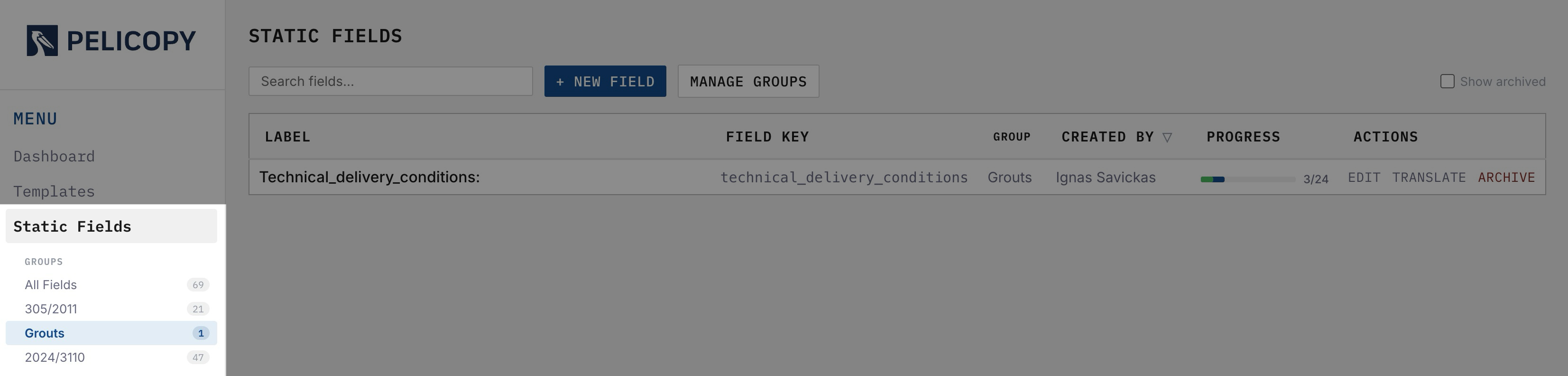
The Static Fields page is the central library where every reusable text block lives.

The overview table features the following columns:
- Label — the human-readable name of the field.
- Field Key — the stable, machine-readable identifier used behind the scenes. Useful for integrations and cross-referencing.
- Group — the group this field belongs to (see below).
- Created By — the user who originally created the field.
- Progress — a bar showing how many of your enabled languages have the field translated and approved.
- Actions — edit, translate, or archive the field.
The Group and Created By column headers also open filter popovers, so you can narrow the list by selecting specific groups or creators.
Above the list you’ll find:
- A Show archived checkbox to include archived fields in the list.
- A Manage Groups button to rename, delete, or create groups.
- A New Field button to add a new static field to the library.
Side Menu
A sidebar on the left lists every group in the library, with a live count of fields in each. Clicking a group filters the main list down to only that group’s fields; clicking All (or the active group again) clears the filter.
The sidebar is the fastest way to focus on a specific regulation or topic when your library has grown to hundreds of fields. It combines cleanly with the column filters — for example, showing fields in the “CPR 305/2011” group that were created by a specific user.
Static Field Groups
Groups let you organize your static field library by topic or regulation. A field that’s part of the Construction Products Regulation, for example, can sit in a “CPR 305/2011” group, while Machinery Directive clauses can sit in their own.
Groups are purely organizational — they don’t change the behavior of a field. They just make it faster to find what you’re looking for in a library that can easily grow to hundreds of entries.
The Manage Groups button opens a dialog where you can:
- Rename existing groups.
- Delete groups you no longer need. Fields in a deleted group are not removed — they simply become ungrouped.
- Create new groups.
Adding a New Static Field
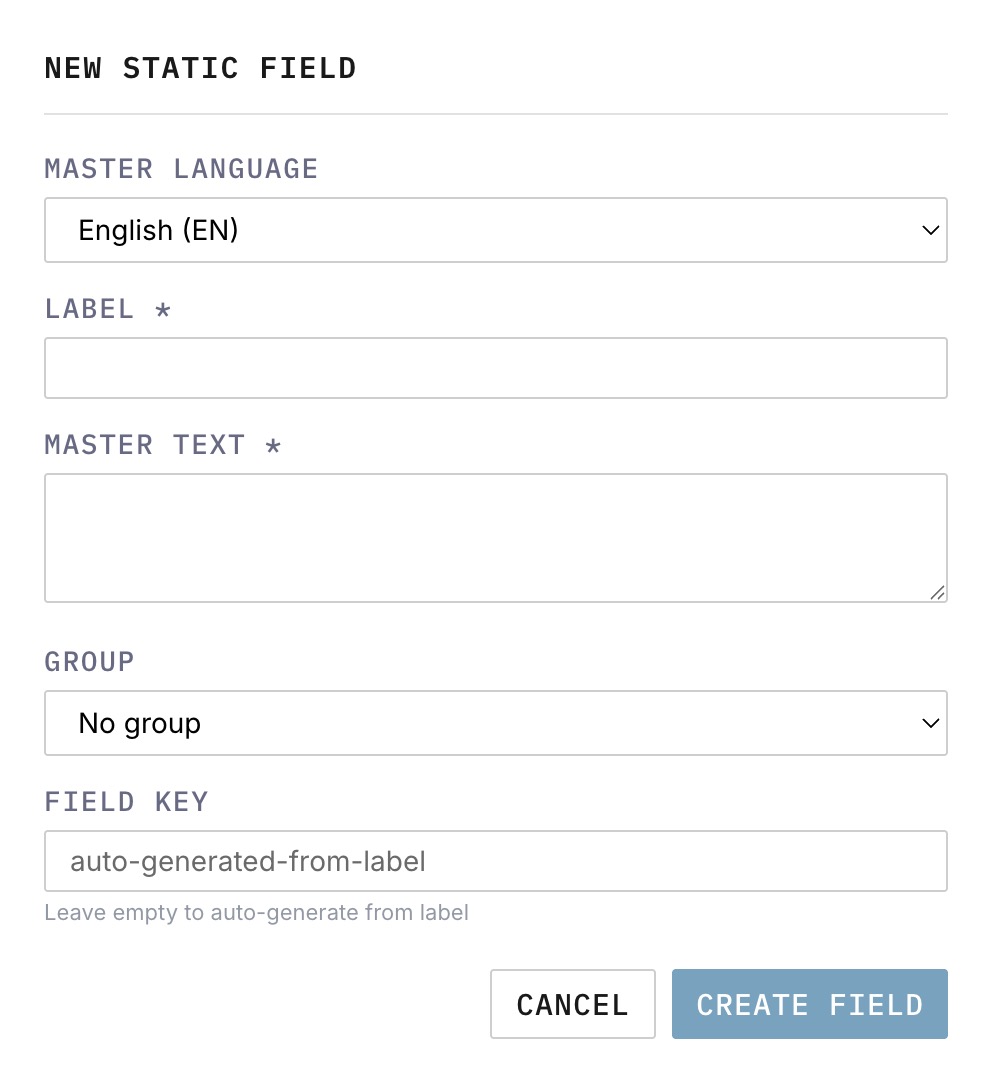
Clicking New Field opens a modal to create a static field. You’ll be asked for:
- Master Language — the language you’re writing the master text in. This is the source language that all translations are based on. The master language is set once at creation and cannot be changed afterwards.
- Label — a short, human-readable name (e.g. “CE Conformity Statement”).
- Master Text — the actual content of the field, in the master language. This is the source from which translations are derived.
- Group — optional; assign the field to a group to organize the library.
- Field Key — a stable identifier for the field. Auto-generated from the label by default, but can be edited. Once set, the field key is best left alone — changing it can disrupt references.
Edit a Static Field
The Edit action opens the same form you saw at creation, minus the master language (which is locked). You can update:
- Label
- Master Text
- Group
- Field Key
Editing the master text is significant: if the field already has translations in other languages, those translations are flagged as stale against the new master text. Stale translations must be reviewed and re-approved before they can be used in PDF generation again. This is an intentional safeguard — you never want a mistranslated update to slip silently into your published documents.
Translating Static Fields
The Translate action opens a dedicated page for translating a static field into all your enabled languages.
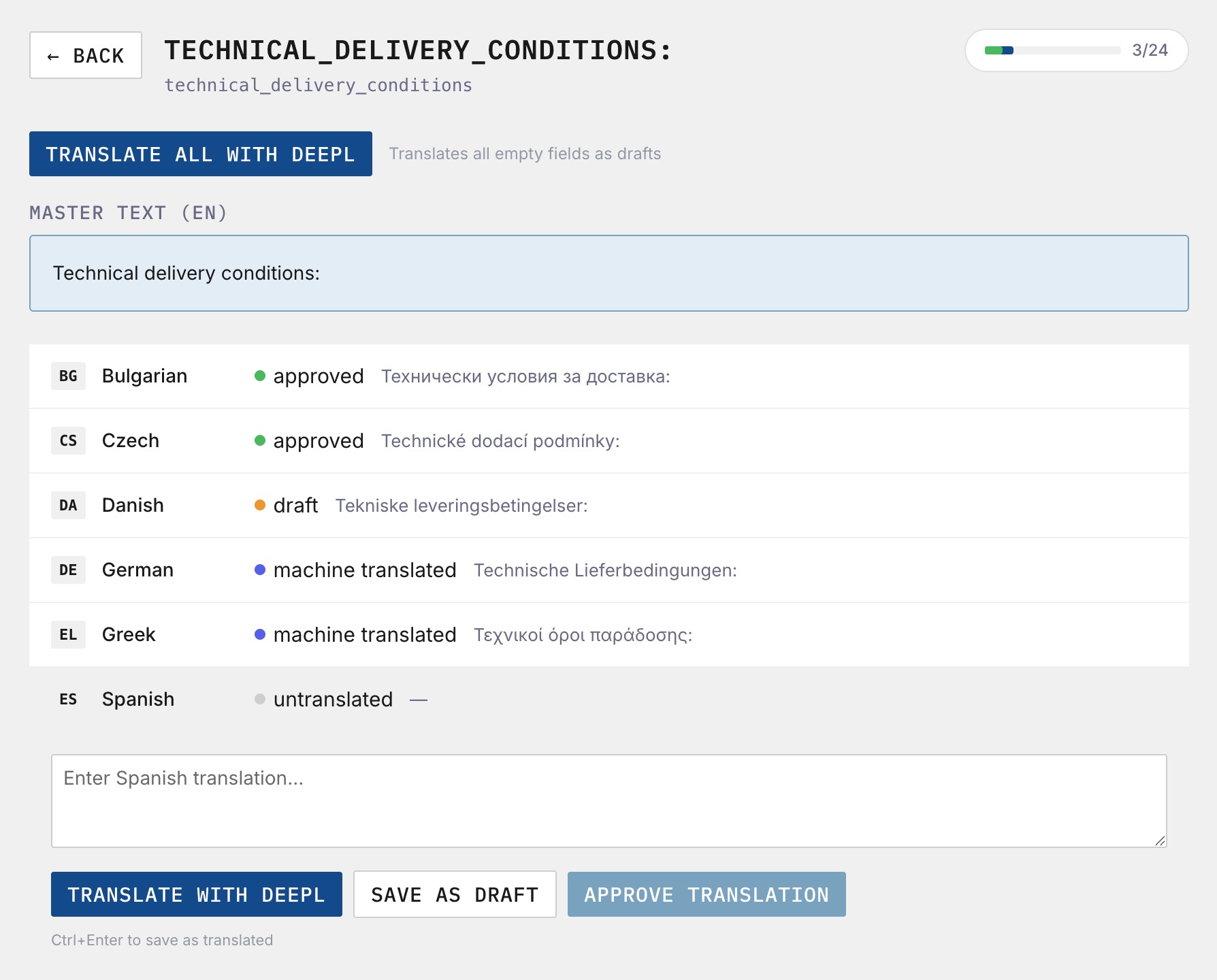
At the top you see the master text, and below it a row for each enabled language. For each language, you can:
- Click the value to edit it manually in plain text.
- Click the DeepL button to machine-translate that single language.
- Save your work as a draft, to come back to later.
- Approve the translation when it’s ready for production use.
A Translate all with DeepL button at the top of the page triggers machine translation across every enabled language at once. Importantly, it only fills in blank values — translations you’ve already drafted or approved are never overwritten. This makes it safe to re-run at any time to fill in new languages as your organization adds them.
A translation must be approved before it can be used in PDF output. If a document includes a static field whose translation in a given language is blank, a draft, or stale, that language will not be available for PDF generation until the translation is approved.
Archiving Static Fields
The Archive action removes a static field from the active library without deleting it.
Archived fields:
- Cannot be added to new templates. They disappear from the static-field picker in the template editor.
- Remain intact on existing documents. Documents that were already using the field retain their pinned version, and their PDFs continue to generate correctly.
- Are hidden by default on the overview page. Tick Show archived to see them.
Archiving is the preferred way to retire a static field you no longer use, without disturbing the documents that depend on it.