Settings is where administrators configure how Pelicopy behaves for the whole organization — the default master language, the font used across every document, which of the 25 supported languages are enabled, who has access to what, and how data is exported.
Only users with the Admin role can access Settings.
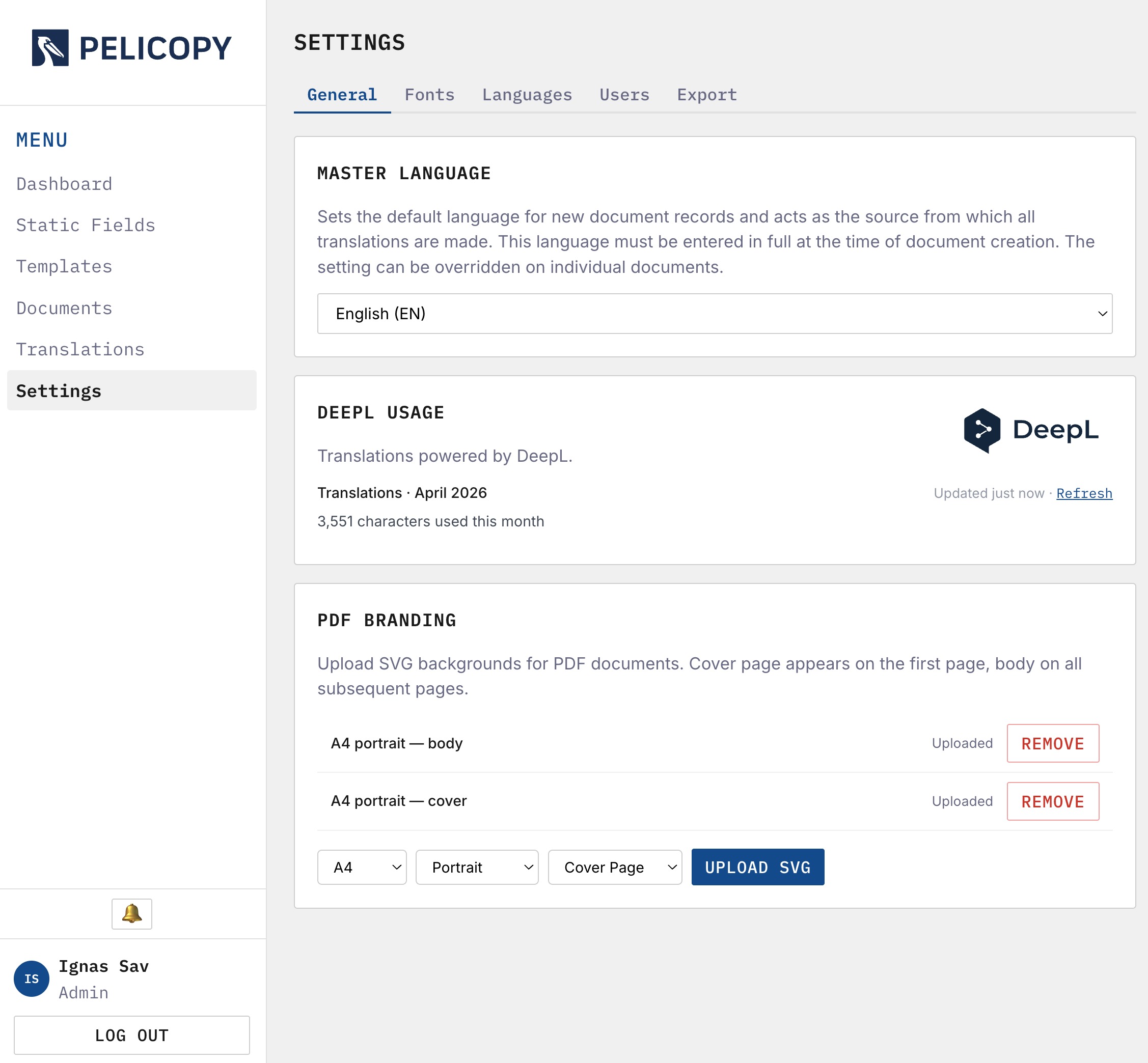
The page is organized into five tabs: General, Fonts, Languages, Users, and Export.
Settings: General
The General tab holds the organization-wide configuration that doesn’t fit anywhere else.
Master Language
The default master language for new documents. Acts as the source language from which every translation is made. The setting is a default — it can be overridden on individual documents at creation time.
DeepL Usage
A live ticker showing your organization’s monthly DeepL character consumption against its limit. Usage is counted per calendar month (UTC), and failed calls don’t count against the quota.
DeepL API keys themselves are managed by the platform administrator, not by customers — you don’t have to provision or maintain a key. If your organization hits its monthly limit, the ticker shows it clearly and further translations are blocked until the next calendar month.
PDF Branding
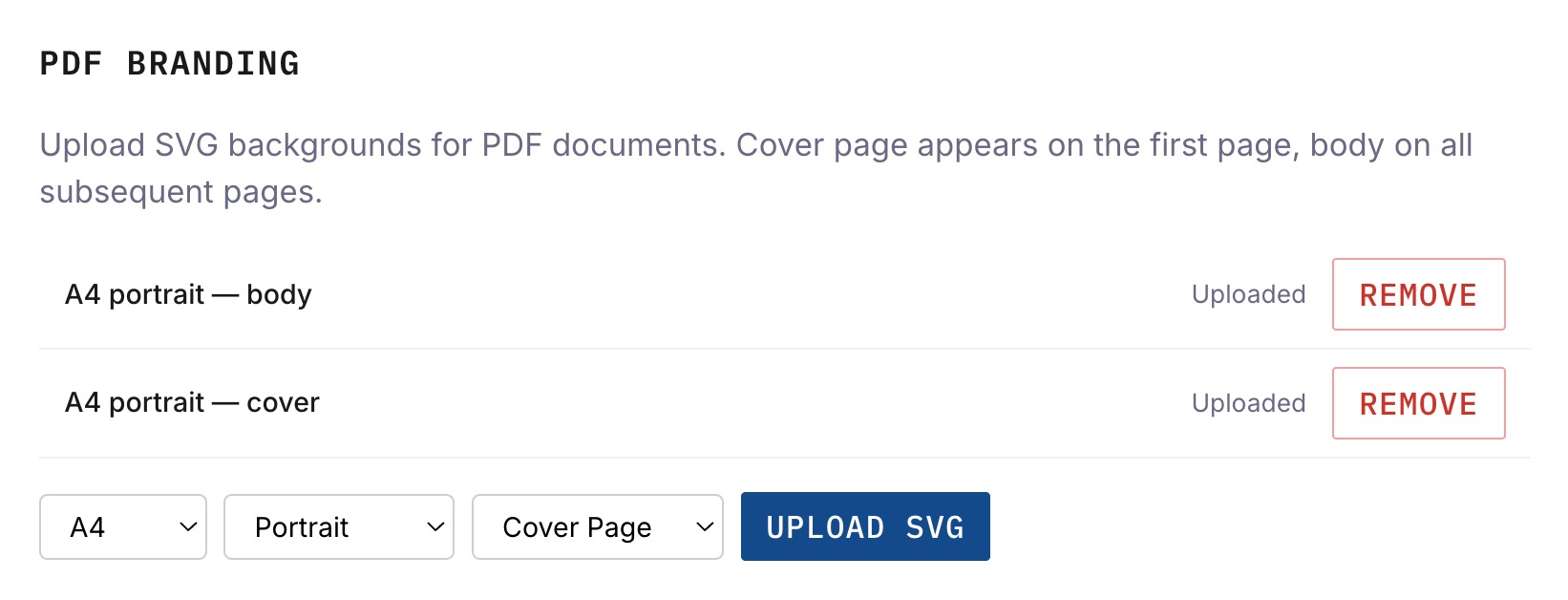
Upload SVG backgrounds that render behind every page of your generated PDFs. Branding is configured per paper size, orientation, and placement:
- Paper size — A4, Letter, or Legal.
- Orientation — portrait or landscape.
- Placement — Cover Page (rendered on the first page only, when a cover page is enabled) or Body (rendered on every other page).
The SVG must match the exact dimensions of the paper size and orientation you’re uploading for, otherwise it will be stretched or clipped. Multiple branding files can coexist — one per combination. Click Remove to delete an existing entry before uploading a new one for the same combination.
Settings: Fonts
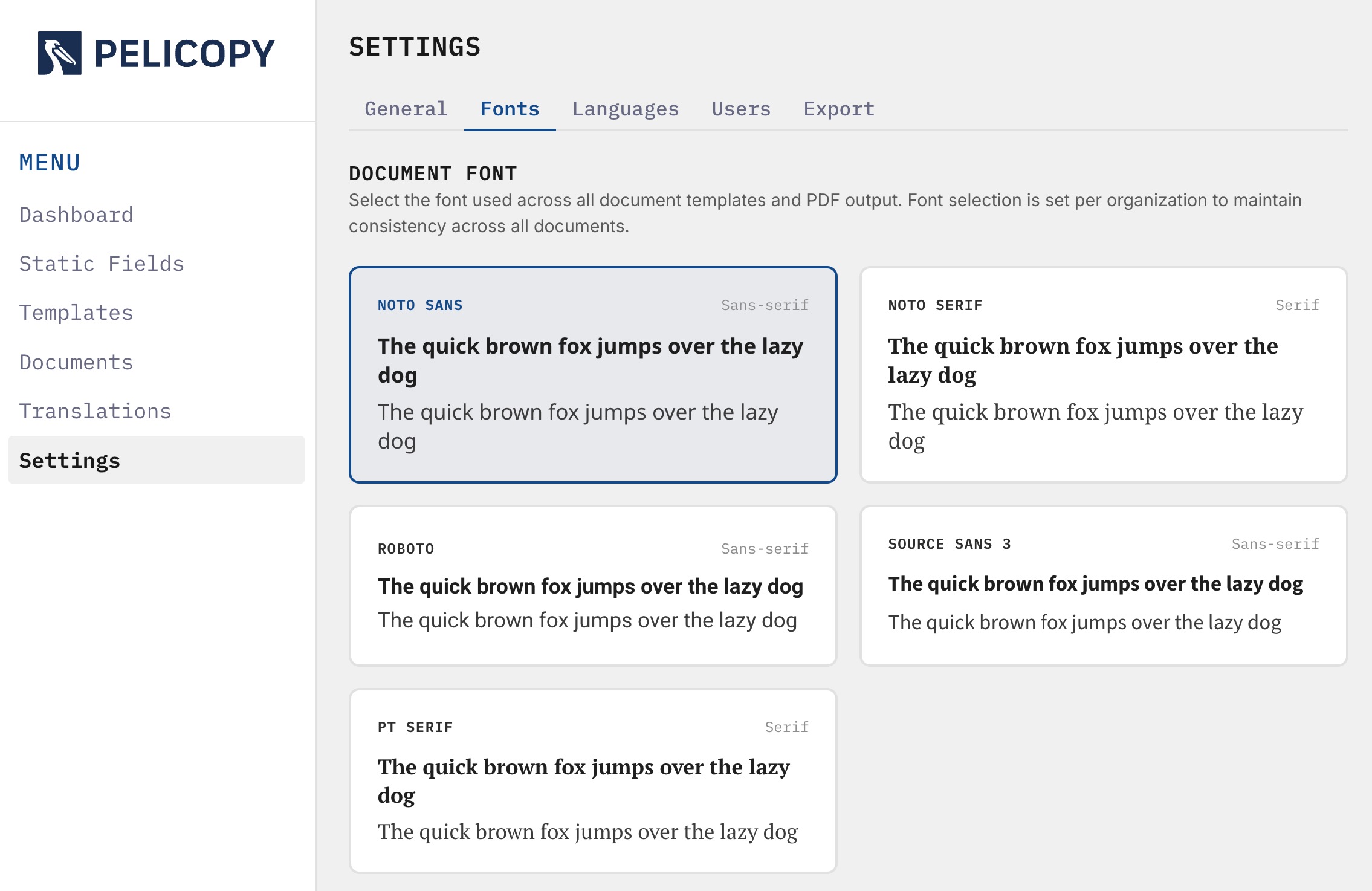
The Fonts tab lets you choose the font used across every document template and every generated PDF. Pick from five curated options:
- Noto Sans (sans-serif)
- Noto Serif (serif)
- Roboto (sans-serif)
- Source Sans 3 (sans-serif)
- PT Serif (serif)
Each font is shown with a sample preview so you can compare before committing. Clicking a font card saves immediately and the change applies to every template and PDF from that moment on. There’s no need to re-publish documents — PDFs are rendered with the currently-selected font at generation time.
Settings: Languages
The Languages tab is where you choose which of the 25 supported languages are enabled for your organization. Disabled languages disappear from translation queues, static-field translation pages, document PDF generation, and user language assignments.
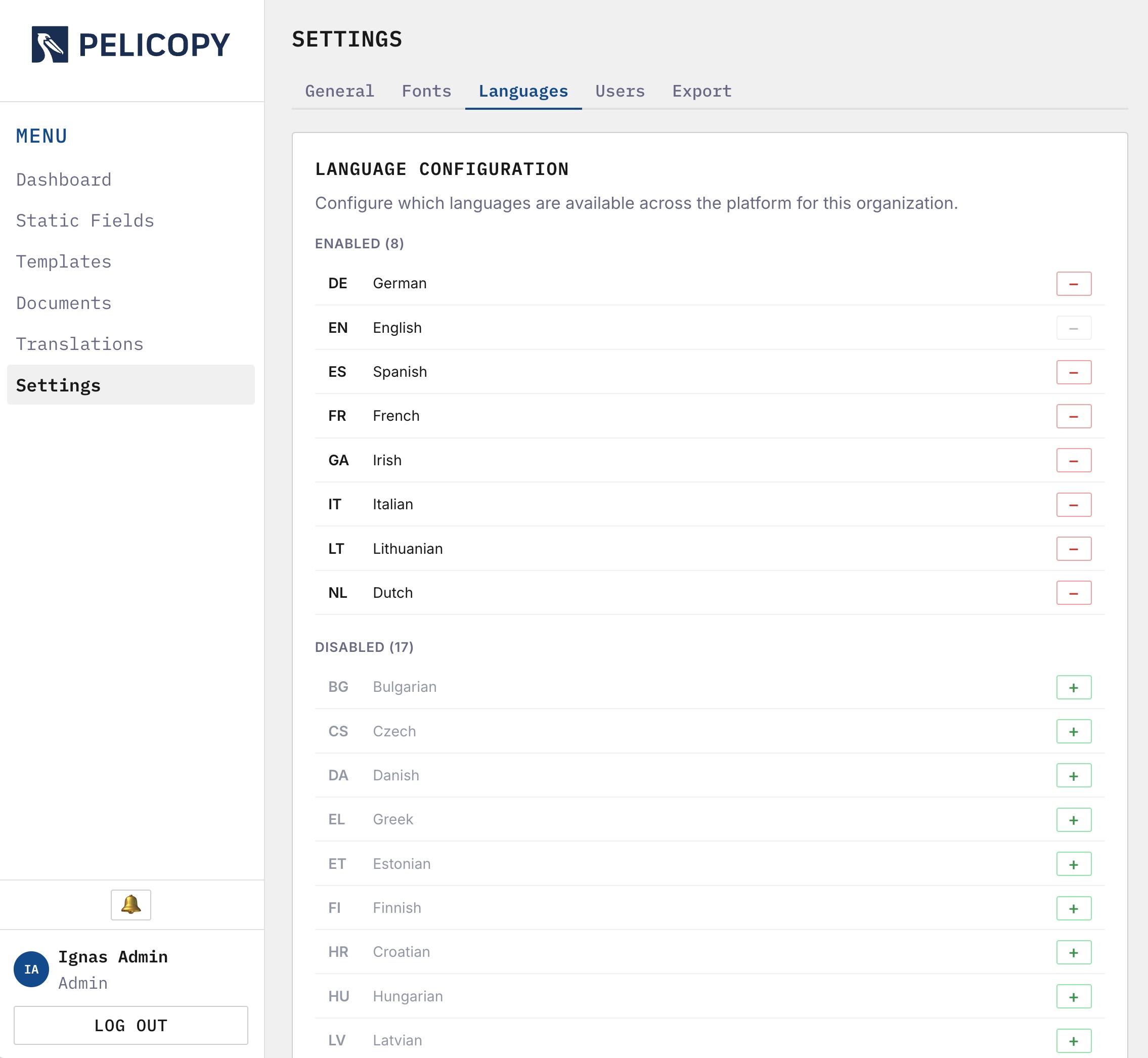
For each language you see:
- A checkbox to enable or disable it.
- A usage indicator showing how many documents currently use it as their master language.
A few safeguards apply:
- You cannot disable the default master language (configured on the General tab).
- You cannot disable a language that’s currently being used as a master language by any document — you’d have to move those documents off it first.
- At least one language must remain enabled at all times.
Disabling a language doesn’t delete its existing translations. They remain in the system and simply become unreachable in the UI until the language is re-enabled.
Your organization may also have a platform-level allowed-languages list, set by the platform administrator, that caps which languages can be enabled at all.
Settings: Users
The Users tab is where administrators manage everyone who has access to the workspace.
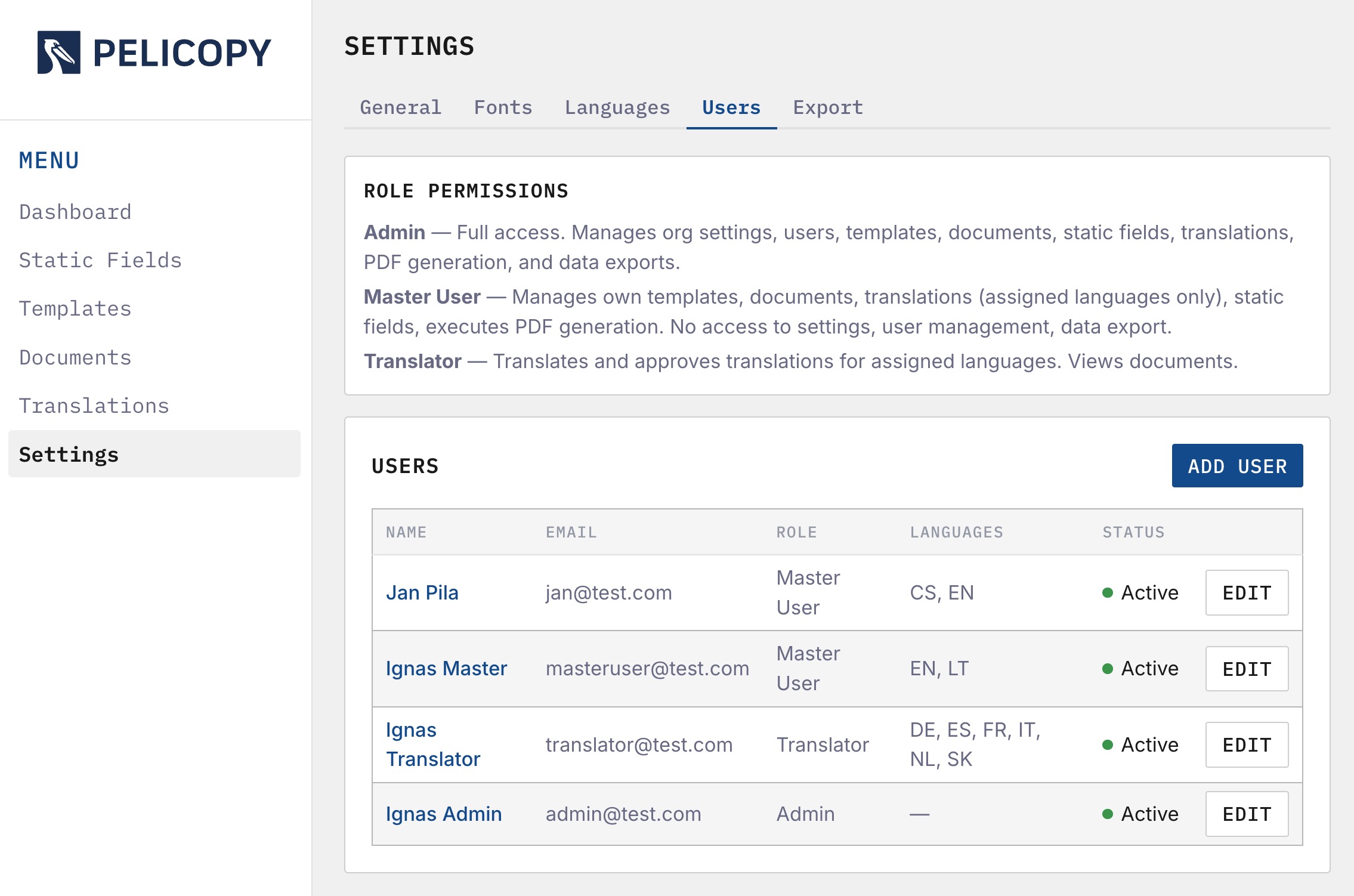
The user list shows each user’s name, email, role, and assigned languages. Clicking a row (or the Add User button) opens a a dialogue popup to create or edit:
- First and last name.
- Email — used as the login identifier.
- Password — set directly or send an invite email.
- Role — Admin, Master User, or Translator.
- Assigned Languages — the set of languages this user can translate and approve. Only relevant for Master Users and Translators; Admins have access to every language.
You cannot change your own role or your own email — another admin, or the platform administrator, has to do that for you.
Role Cheatsheet
- Admin — full access to the workspace; manages settings, users, templates, documents, static fields, and every language.
- Master User — owns content (templates, documents, static fields) and can translate into their assigned languages.
- Translator — can only translate and approve their assigned languages; no access to templates, documents, or settings.
Settings: Export
The Export tab provides CSV exports for offline review and external processing.
![Screenshot: Export tab with document picker and static-field export]
Two exports are available:
Document Translations
Pick any published or superseded document from the dropdown and click Export CSV. The file contains:
- Every dynamic field’s source text (in the document’s master language).
- The translated text for each non-master language.
- The translation status of each cell.
For published documents, the export reflects the current live state of translations.
For superseded documents, the export is a revision-accurate snapshot. Dynamic field translations are physically copied at the moment a new revision is created, so each superseded document retains its own independent translation data — and because superseded documents cannot be translated further, that data stays frozen. Exporting a superseded document gives you exactly what the translations looked like when the document was retired, which is what you want for audit trails and historical compliance records.
Useful for audit trails, offline proofreading, or handing content to an external translation agency.
Static Field Library
Click Export CSV to download the entire static-field library as a single file:
- Field key, label, group, master language, and master text.
- Translations in every supported language.
- Status of each translation.
Pelicopy’s system-generated static fields (preloaded content) are excluded from this export — only your own fields are included.